

| Connector | Notes | |
|---|---|---|
| Nekt Express | Google BigQuery | Native Metabase connector |
| GCP | Google BigQuery | Native Metabase connector |
| AWS | Amazon Athena | Native Metabase connector |
Nekt Express
Nekt Express uses GCP infrastructure. Connect Metabase using the Google BigQuery database connector.You will need a Google service account with BigQuery read access to the
nekt-hosted-infrastructure project. Please get in touch with Nekt support to get the credentials.- In Metabase, go to Admin settings → Databases → Add a database.
- Select Google BigQuery as the database type.
- Authenticate using a service account with access to the
nekt-hosted-infrastructureproject. - Select the dataset (each layer is a dataset in BigQuery) and save.
GCP
Your Nekt workspace is on your own GCP account. Connect Metabase using Google BigQuery with your own project.Refer to the Metabase BigQuery documentation for full setup details.
- In Metabase, go to Admin settings → Databases → Add a database.
- Select Google BigQuery.
- Authenticate with your GCP service account.
- Select your project and datasets.
AWS
Your Nekt workspace is on your own AWS account. Connect Metabase using the Amazon Athena database connector.You will need AWS credentials — Access Key ID and Secret Access Key. Generate them using this AWS guide.
Replace
{your_company_slug} throughout with your company slug. Contact Nekt support if you don’t know it.Step 1: Select Amazon Athena as the database
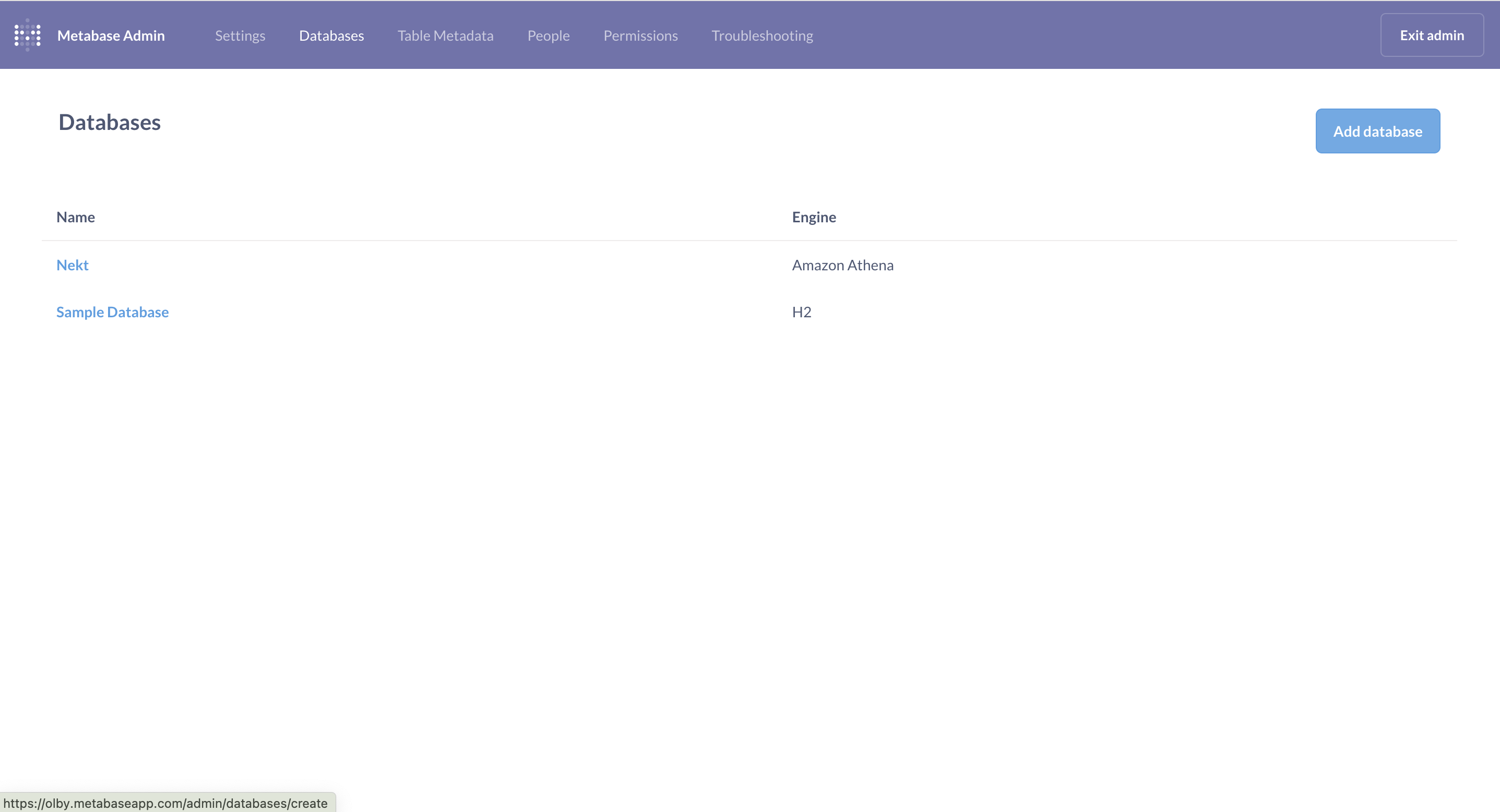
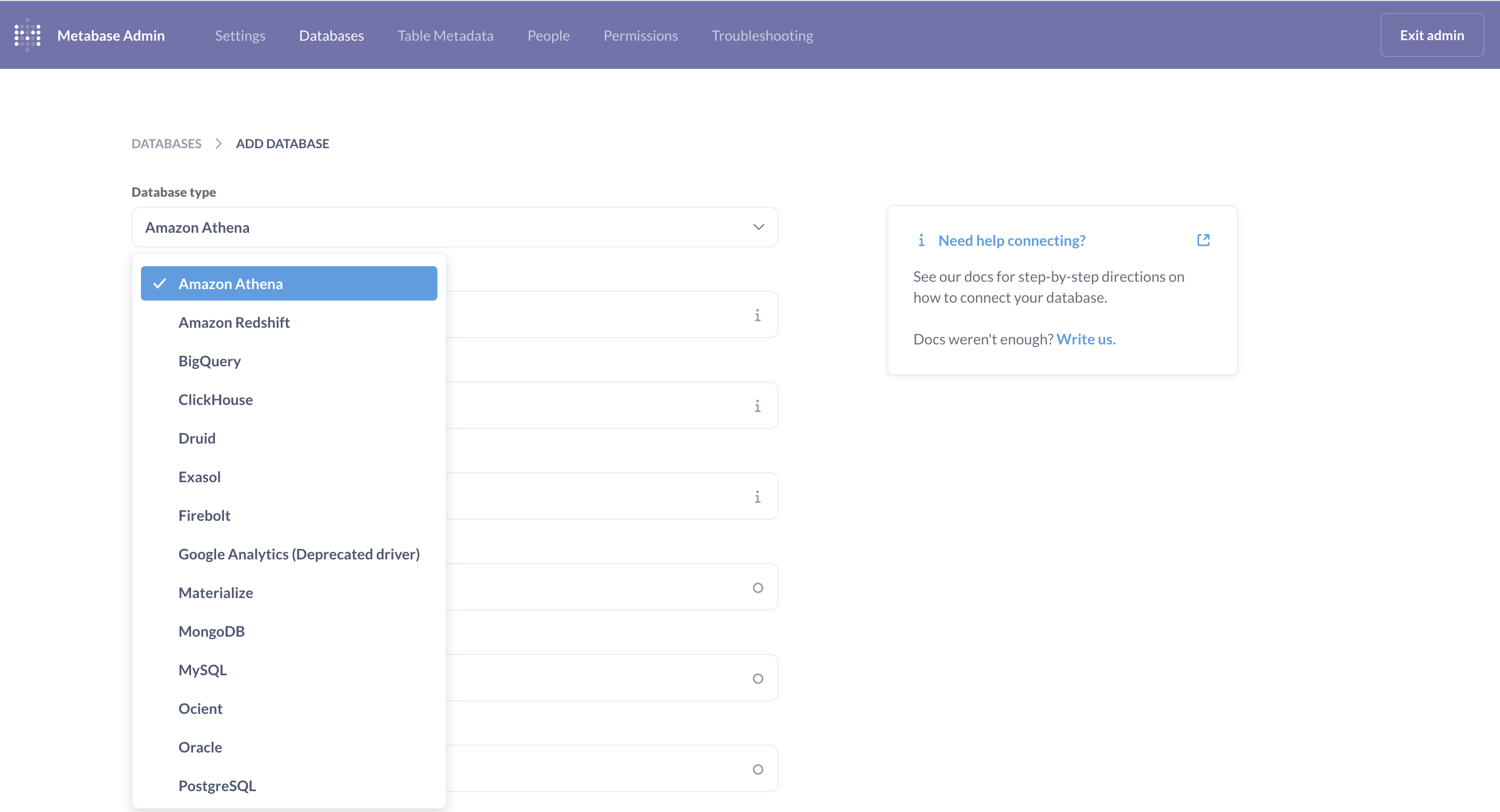
If setting up Metabase for the first time, select your database during onboarding. For an existing Metabase account:- Go to Admin settings (gear icon menu) → Databases → Add a database.
Step 2: Add connection details
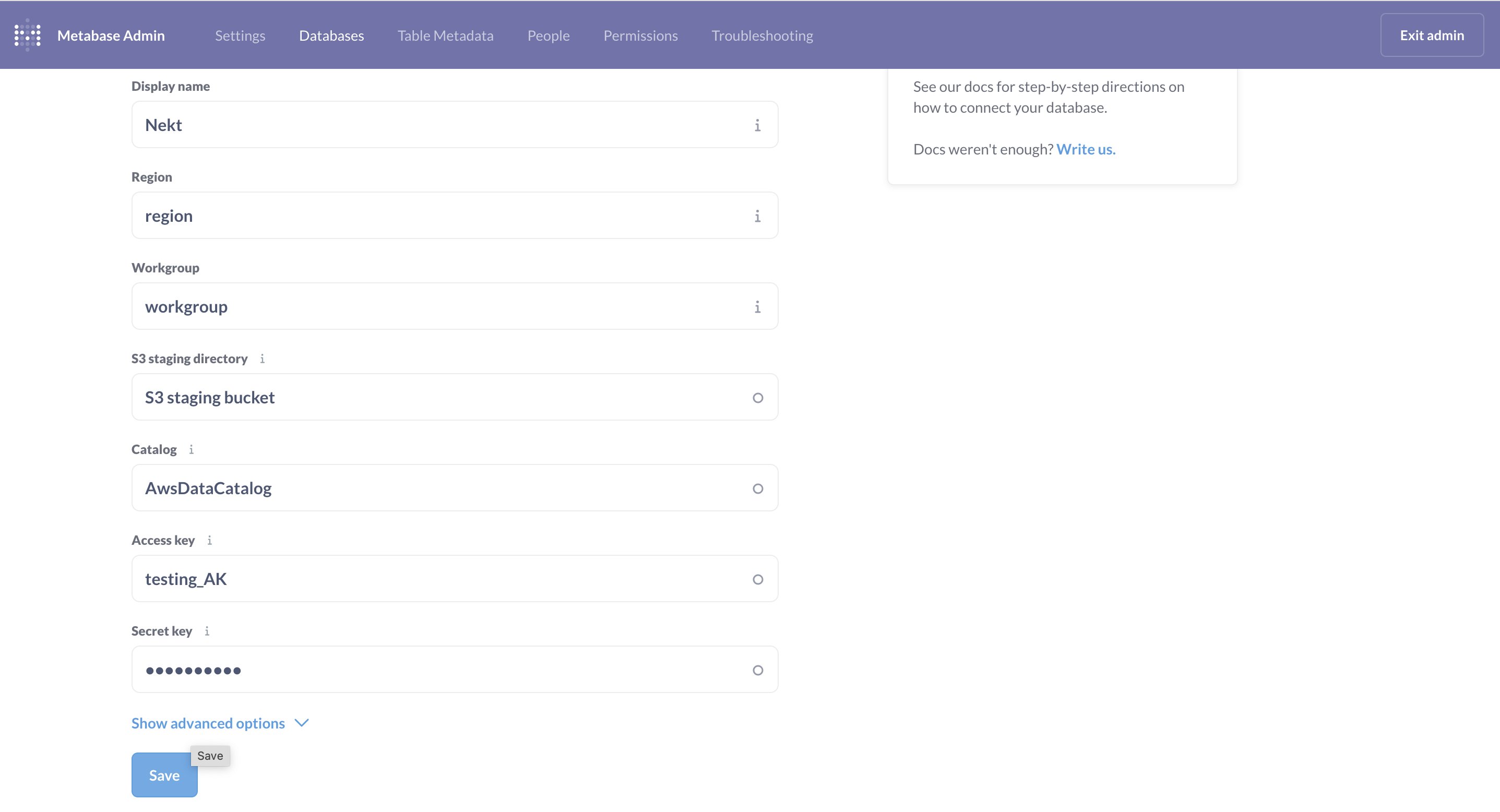
| Field | Value |
|---|---|
| Display name | Nekt |
| Region | us-east-1 (confirm your actual region) |
| Workgroup | primary |
| S3 staging directory | s3://nekt-lakehouse-{your_company_slug} |
| Catalog | AwsDataCatalog |
| Access key | your IAM Access Key ID |
| Secret key | your IAM Secret Access Key |
Step 3: Add the IAM policy
If using an IAM user to generate the credentials, attach the following policy to grant Metabase the necessary access:Step 4: Explore your data
Once the database is configured and the IAM policy is attached, browse your tables in Metabase.For more details, see the Metabase Amazon Athena connector documentation.